
Get the Xtreme HD IPTV App on Any Device
Download our recommended IPTV player for free, sign in with the details from your subscription, and start watching live TV, sports and movies in HD and 4K. Setup takes less than five minutes.
*Works on Android phones & TV boxes, Amazon Fire TV Stick, Android Smart TVs, iPhone and iPad.
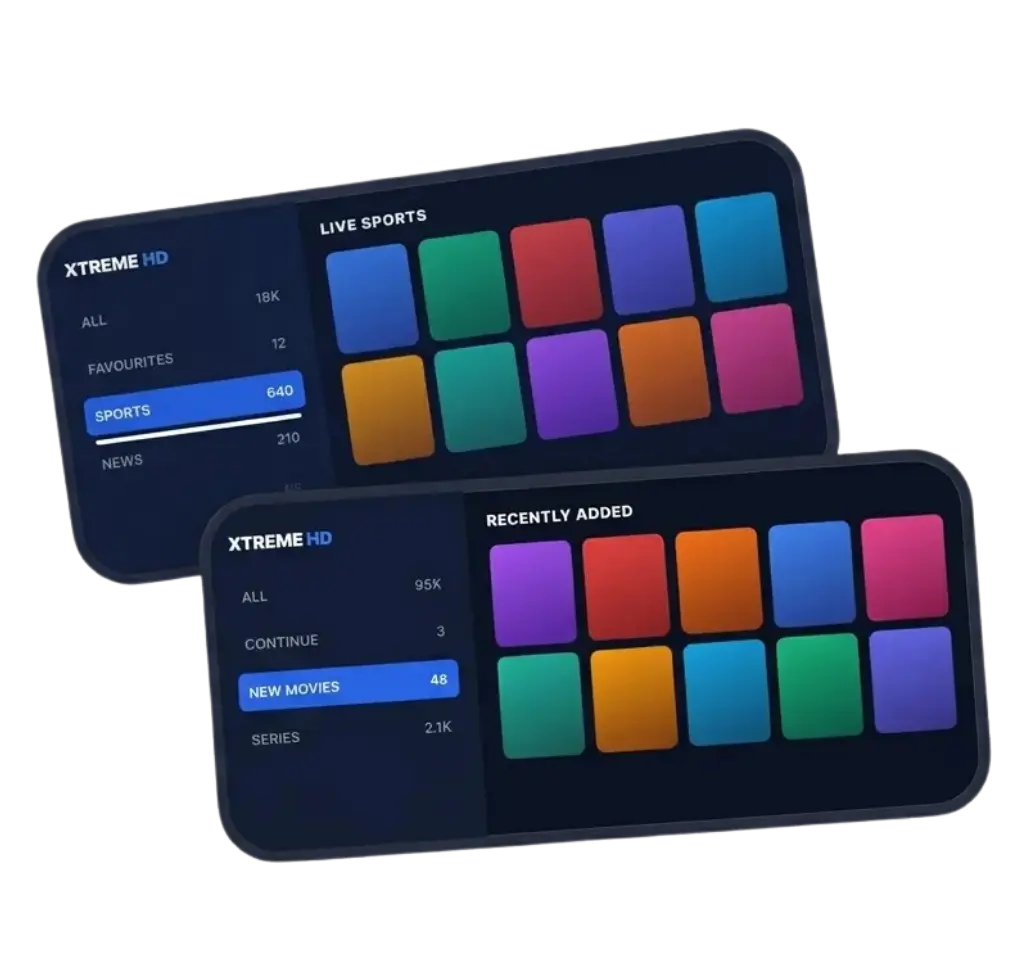
From Download to Live TV in 3 Steps
The app is free. Your Xtreme HD IPTV subscription is what unlocks the channels, movies and series inside it.
Choose a plan
Pick the subscription that fits you. Right after payment, we send your username, password and server URL by email and WhatsApp.
Install the player
Download the APK for Android or Firestick, or get the app from the App Store on iPhone and iPad. Follow the guide for your device below.
Sign in and watch
Open the app, choose Login with Xtream Codes API, enter your details and your full channel list loads in seconds.
How to Install the IPTV App on Your Device
Pick your device and follow the steps. If you get stuck, our support team will walk you through it on WhatsApp.
How to Install IPTV on Amazon Firestick & Fire TV
- Search for the free Downloader app on your Fire TV home screen and install it.
- Go to Settings → My Fire TV → Developer Options and allow Downloader to install unknown apps.
- Open Downloader, type xtremhdiptvs.io/app in the browser field and tap the Android & Firestick download button.
- Install the file, open the app and sign in with your Xtream Codes details.
How to Install IPTV on Android Phones & TV Boxes
- Tap the APK download button on this page from your Android phone, tablet or TV box.
- When asked, allow your browser to install unknown apps (you only need to do this once).
- Open the downloaded file and tap Install.
- Launch the app, choose Xtream Codes API and enter the login details we sent you.
How to Install IPTV on iPhone & iPad
- Tap the App Store button to open Smarters Player Lite, our recommended free player for iOS.
- Tap Get and wait for the app to install.
- Open it, accept the terms and select Login with Xtream Codes API.
- Enter any name, your username, password and server URL, then tap Add User.
How to Watch IPTV on a Smart TV
- Android / Google TV (Sony, TCL, Hisense, Philips and others): follow the Android steps above. The same APK works.
- Samsung or LG: these TVs can't install APK files. Message us with your TV model and we'll set you up with a compatible player.
- Prefer a simpler route? Plug a Fire TV Stick into any HDMI port and follow the Firestick guide.
Everything You Need for a Better Viewing Experience
One app for live channels, movies and series, built to stay smooth even during the biggest live events.
Built-in TV Guide (EPG)
See what's on now and what's coming next on every channel, so you never miss kick-off or the start of a show.
HD & 4K Playback
Watch in full HD and 4K where available, with automatic quality adjustment to match your connection.
Parental Controls
Lock adult or selected categories behind a PIN so the whole family can use the app safely.
Favourites & Continue Watching
Save the channels you watch most and pick up movies and episodes exactly where you left off.
Fast Search
Find any channel, film or series in seconds by typing a few letters instead of scrolling through long lists.
Multi-Device Ready
Use the same login on your TV, phone and tablet. Add more connections to your plan to watch on several screens at once.
IPTV App FAQ
Is the IPTV app free to download?
Yes. The player app is completely free on Android, Firestick, iPhone and iPad. You only pay for your Xtreme HD IPTV subscription, which gives you access to the channels and on-demand library.
Where do I find my login details?
Your username, password and server URL are sent by email and WhatsApp right after your order is confirmed. Check your spam folder if you don't see the email, or message our support team and we'll resend them.
Why won't the APK install on my Firestick?
Most of the time, Downloader hasn't been allowed to install unknown apps yet. Go to Settings → My Fire TV → Developer Options and turn it on. If Developer Options is hidden, go to Settings → My Fire TV → About and click your device name seven times to reveal it.
Can I use one subscription on several devices?
You can install the app on as many devices as you like. The number of screens that can stream at the same time depends on the number of connections in your plan. Multi-connection plans are available on our pricing page.
Does the app work with a VPN?
Yes. The app works with all major VPN services on Android, Firestick and iOS. Turn the VPN on before you open the app for the best results.
Channels are buffering. What should I do?
Restart the app and your router first. For 4K we recommend at least 25 Mbps, and a wired Ethernet connection is more stable than Wi-Fi. If buffering continues, contact support and we'll check your line.
Step-by-Step IPTV Setup Guides
Detailed walkthroughs with screenshots for every device, plus fixes for the most common streaming problems.
How to Install IPTV on Firestick: Complete Guide
Every screen from enabling Developer Options to watching your first channel, with screenshots.
Read guide →How to Watch IPTV on Samsung & LG Smart TVs
The best player options for TVs that can't install APK files, and how to set each one up.
Read guide →IPTV Not Working? 7 Quick Fixes That Work
Simple checks for buffering, frozen channels and login errors before you contact support.
Read guide →App Installed? Activate Your Subscription
Choose a plan, get your login details within minutes and start streaming thousands of live channels, movies and series today.